Module 0
10 min
Excel Interface Tour
Get familiar with Excel's interface and essential features
Excel Interface Tour
Let's get familiar with the Excel window. It's simpler than it looks!
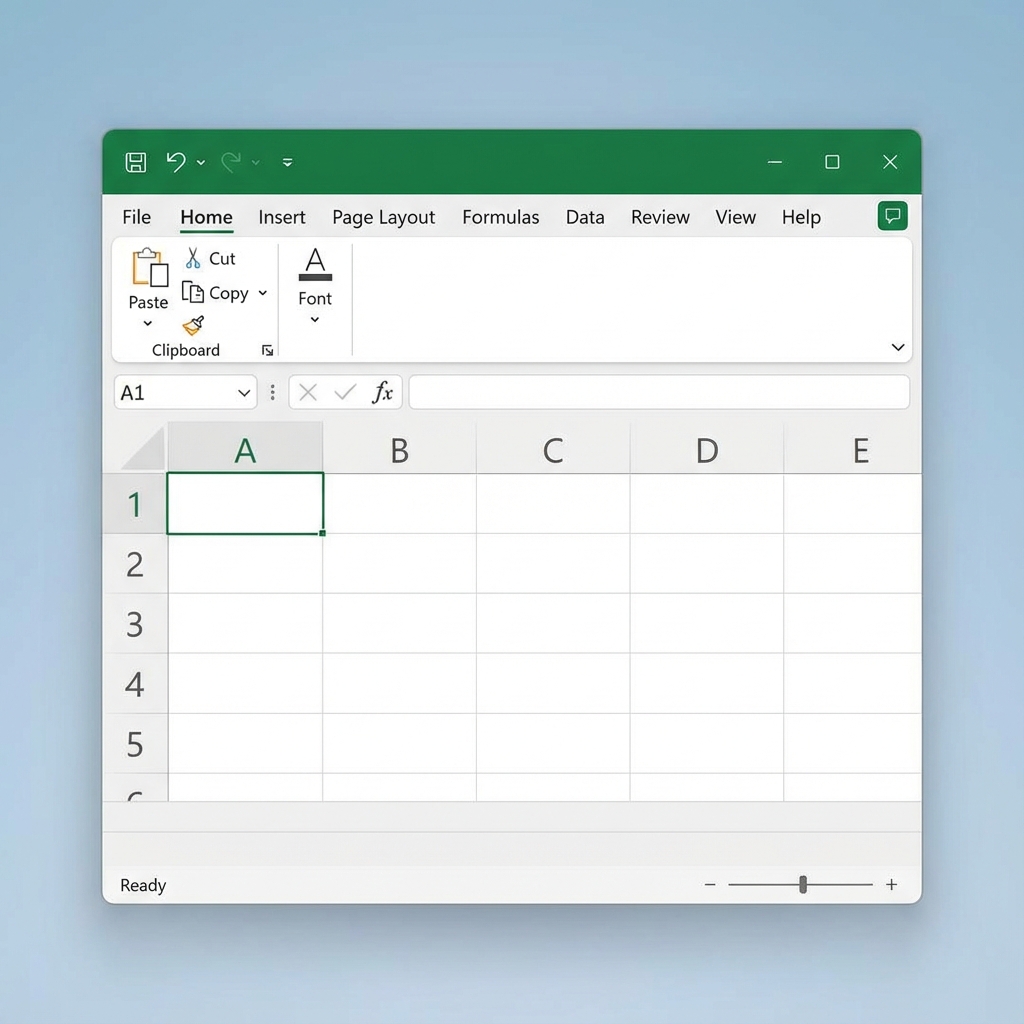
1. Quick Access Toolbar (Top Left)
Your shortcut for common commands.
- Save, Undo, Redo are here by default.
- Customize it: Add your favorite buttons for one-click access.
2. The Ribbon (Top Menu)
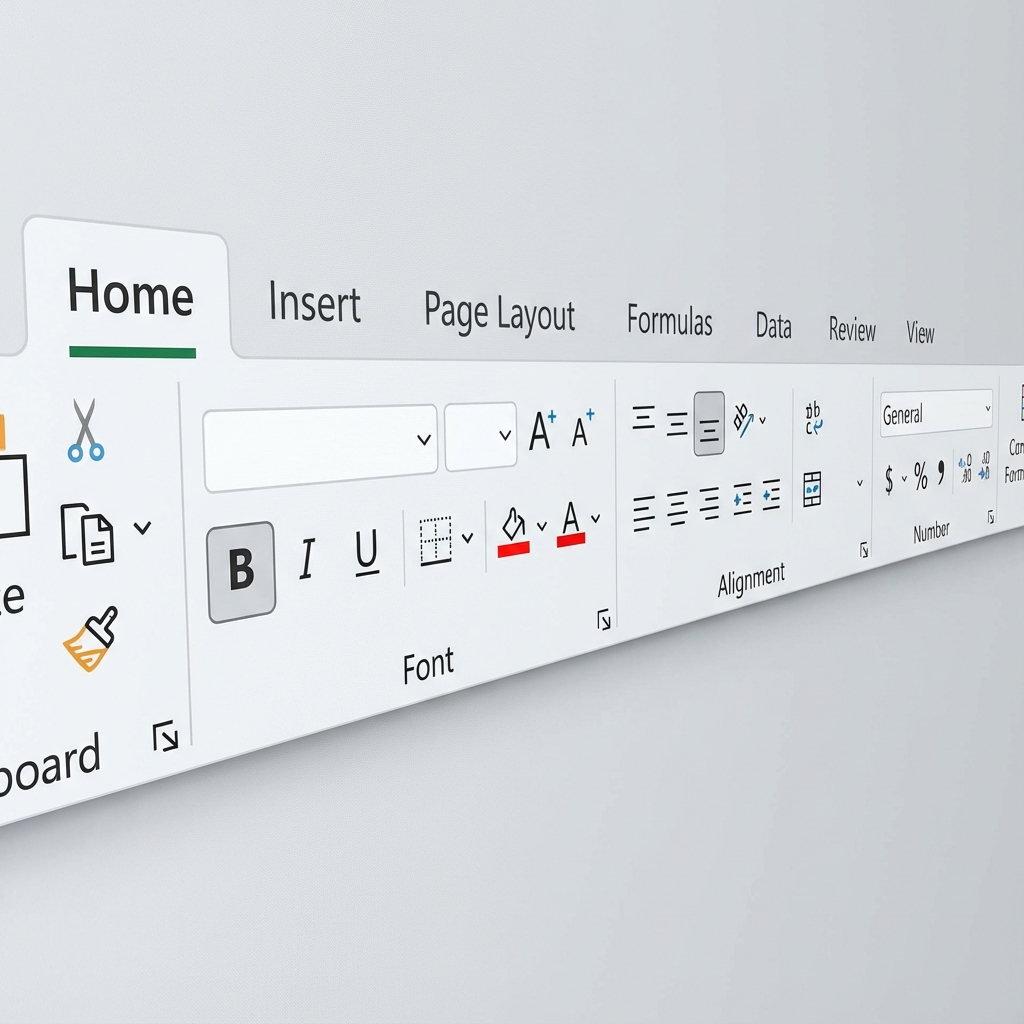 The main command center, organized by tabs:
- Home: Formatting (Bold, Colors), Copy/Paste.
- Insert: Add Charts, Pictures, Tables.
- Page Layout: Margins, Print settings.
- Formulas: Math functions library.
- Data: Sort, Filter, Import data.
- View: Zoom, Freeze Panes.
3. Formula Bar
Located above the grid.
- Shows the real content of a cell.
- Use it to write or edit formulas.
4. The Grid (Cells)
Where the magic happens.
- Columns: Letters (A, B, C...).
- Rows: Numbers (1, 2, 3...).
- Cell Address: Column + Row (e.g., A1).
- Range: A group of cells (e.g., A1:C10).
5. Sheet Tabs (Bottom)
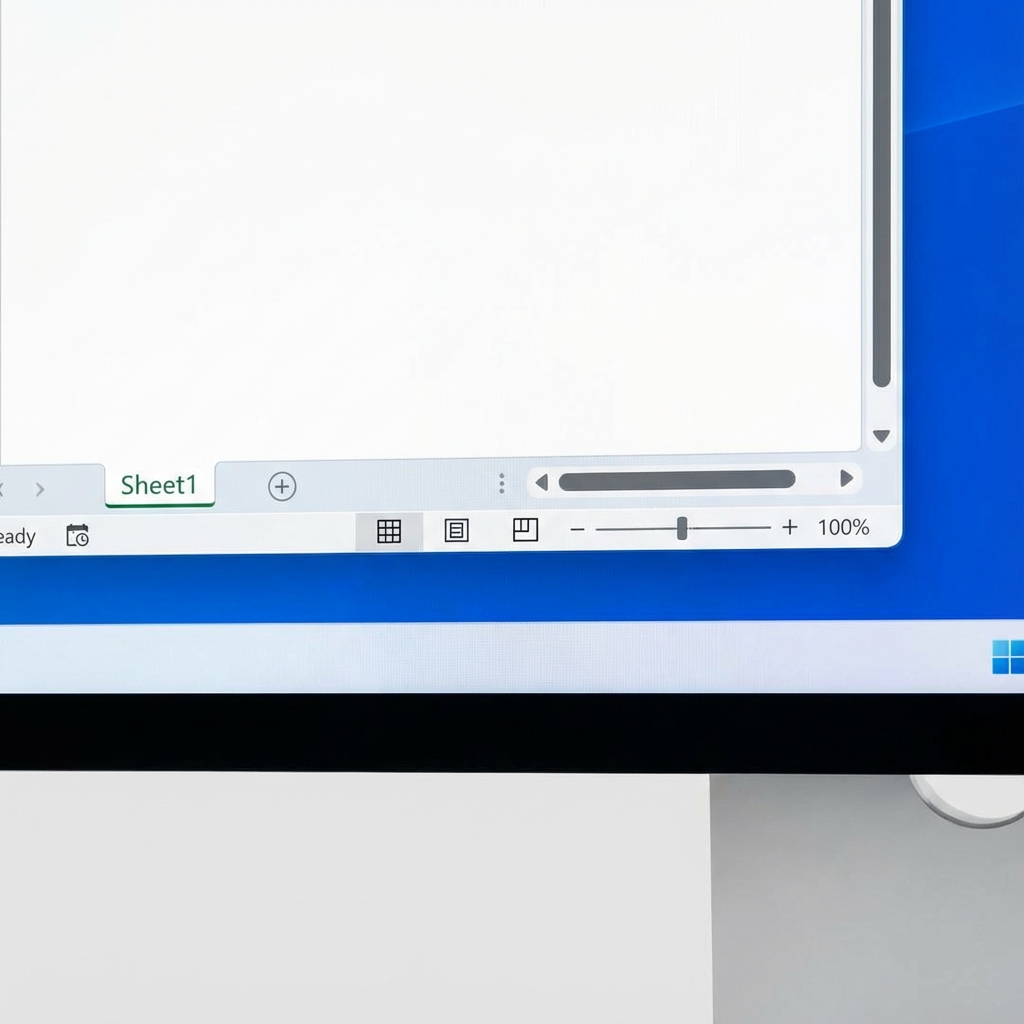 Manage your worksheets.
- Add: Click the + button.
- Rename: Double-click a tab.
- Move: Drag and drop tabs.
6. Status Bar (Bottom Edge)
Quick info at a glance.
- Shows Sum, Average, Count of selected cells automatically.
- Zoom Slider: Bottom right to zoom in/out.
Essential Shortcuts
Move fast without the mouse:
- Arrow Keys: Move one cell.
- Tab: Move right.
- Enter: Move down.
- Ctrl + Home: Go to A1.
- Ctrl + Z: Undo (Lifesaver!).
Ready? Let's build your first spreadsheet!