Module 2
3 min
Gridlines & View Settings
Control how your spreadsheet looks on screen
Gridlines & View Settings
Learn how to show or hide gridlines and change how you see your sheet.
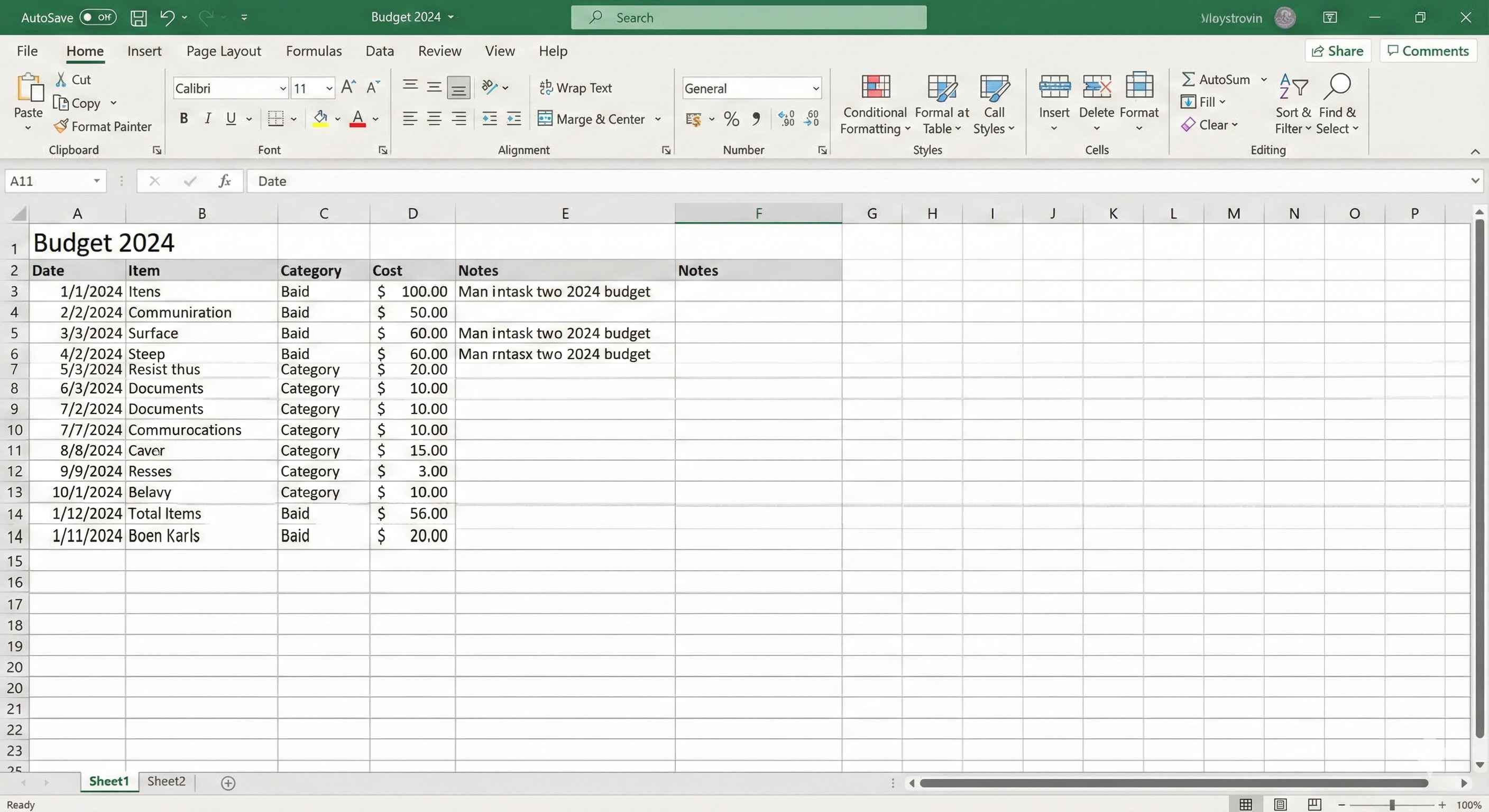
What Are Gridlines?
Gridlines are the light gray lines you see in Excel.
They help you see where cells are.
Note: Gridlines do NOT print by default.
Show or Hide Gridlines
Step 1: Go to View tab
Step 2: Check or uncheck Gridlines
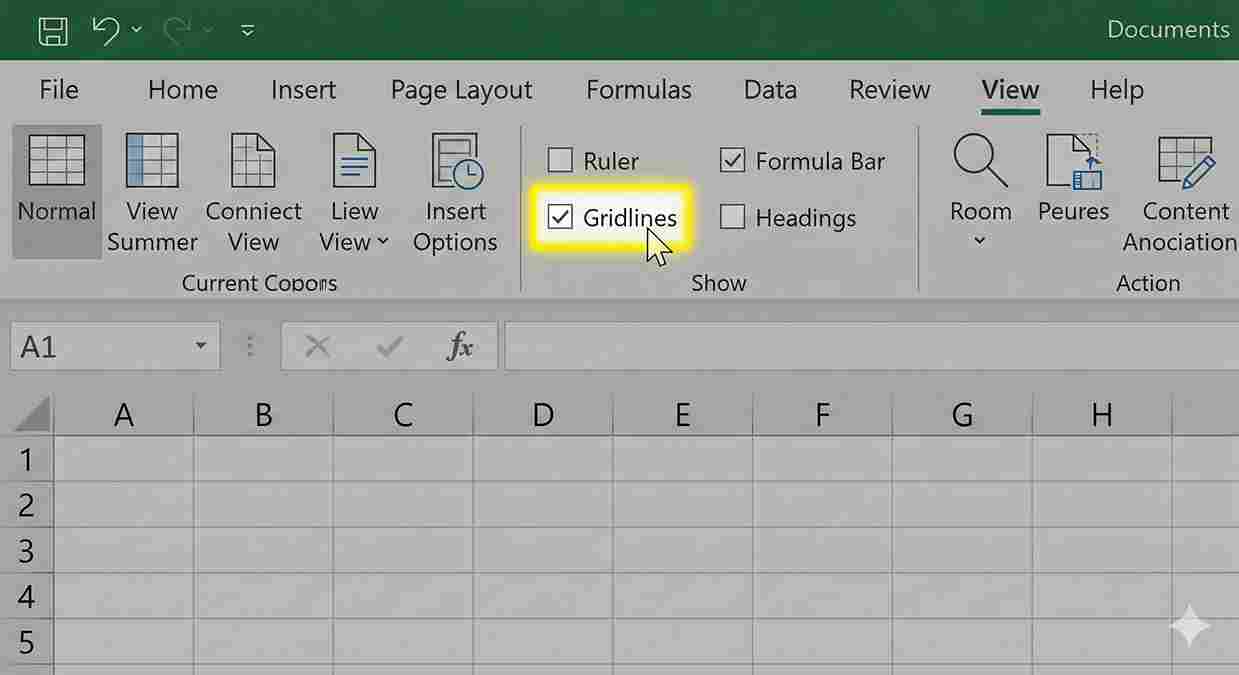
| Checkbox | What Happens |
|---|---|
| Checked ✓ | Gridlines show |
| Unchecked | Gridlines hidden (clean look) |
2 rows
Zoom In and Out
Make cells bigger or smaller on screen.
Method 1: Slider
Use the slider at bottom right corner.
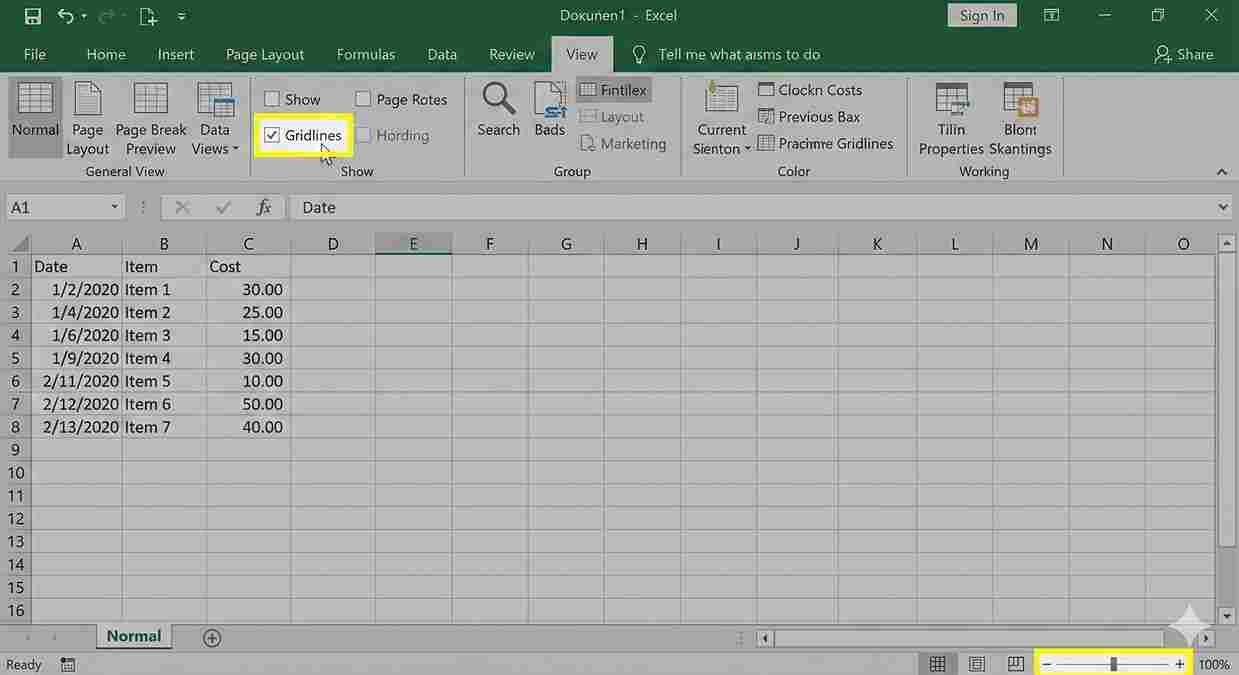
Method 2: View Tab
Go to View tab → Click Zoom
Method 3: Keyboard
Hold Ctrl and scroll mouse wheel.
| Zoom Level | Best For |
|---|---|
| 50-75% | See more data |
| 100% | Normal view |
| 150-200% | See details clearly |
3 rows
Freeze Rows or Columns
Keep headers visible when you scroll.
Freeze Top Row
- Go to View tab
- Click Freeze Panes
- Select Freeze Top Row
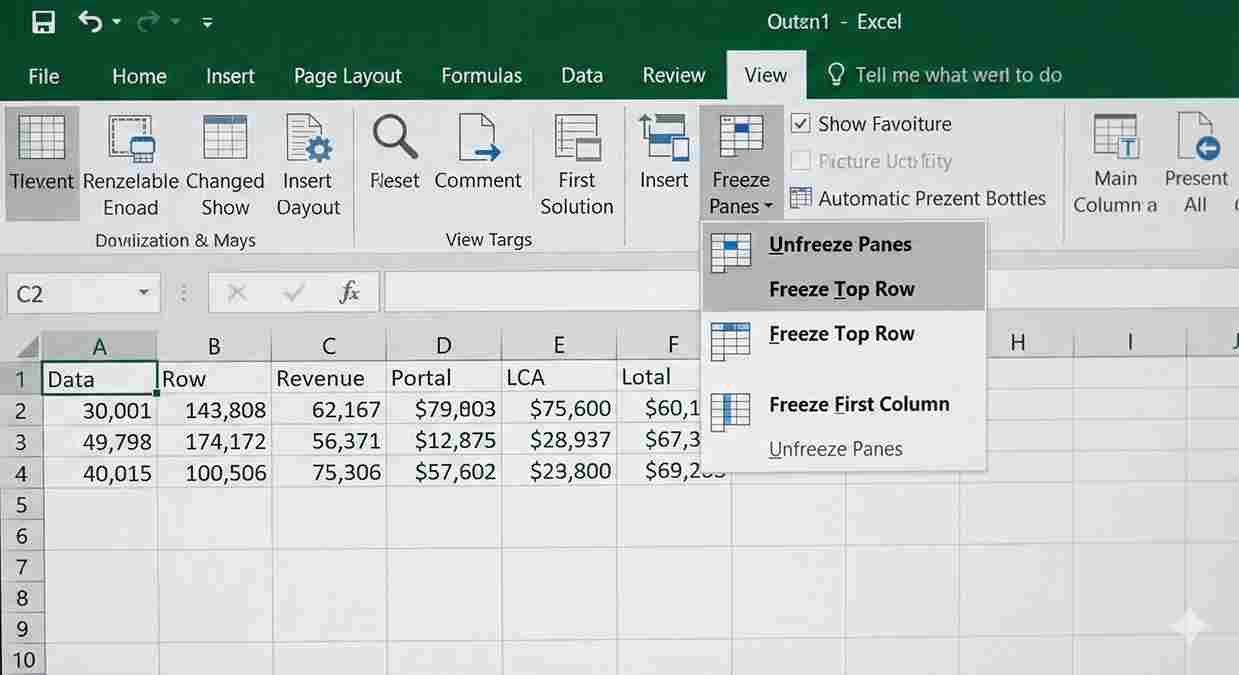
Now row 1 stays when you scroll down!
Freeze First Column
- Go to View tab
- Click Freeze Panes
- Select Freeze First Column
Unfreeze
- Go to View tab
- Click Freeze Panes
- Select Unfreeze Panes
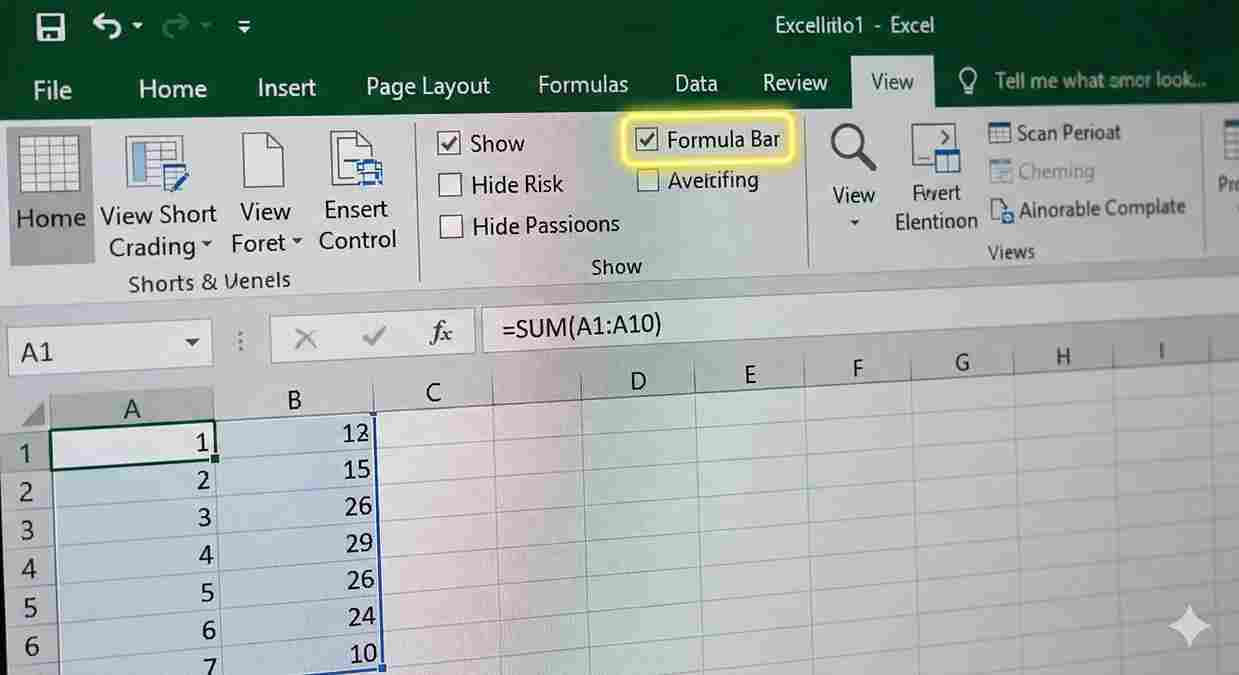
Show or Hide Formula Bar
The formula bar shows what is inside a cell.
View tab → Check or uncheck Formula Bar
Show or Hide Headings
Headings are the row numbers (1, 2, 3) and column letters (A, B, C).
View tab → Check or uncheck Headings
Summary
| Setting | Where |
|---|---|
| Gridlines | View tab → Gridlines |
| Zoom | Bottom right slider |
| Freeze rows | View tab → Freeze Panes |
| Formula bar | View tab → Formula Bar |
| Headings | View tab → Headings |
5 rows
These settings help you work better. Try them!