Format Painter
Copy formatting instantly with a single click
Format Painter
Format Painter is like a copy-paste tool, but only for formatting - not the data.
You spent 5 minutes making a cell look perfect - bold text, yellow background, nice borders. Now you want 50 other cells to look the same. Do you format each one manually?
No. You use Format Painter.
What is Format Painter?
Format Painter copies the "look" of a cell and applies it to other cells.
It copies:
- Font (size, color, bold, italic)
- Background color
- Borders
- Number format (currency, percentage, dates)
- Alignment
It does NOT copy the actual data - only the formatting.
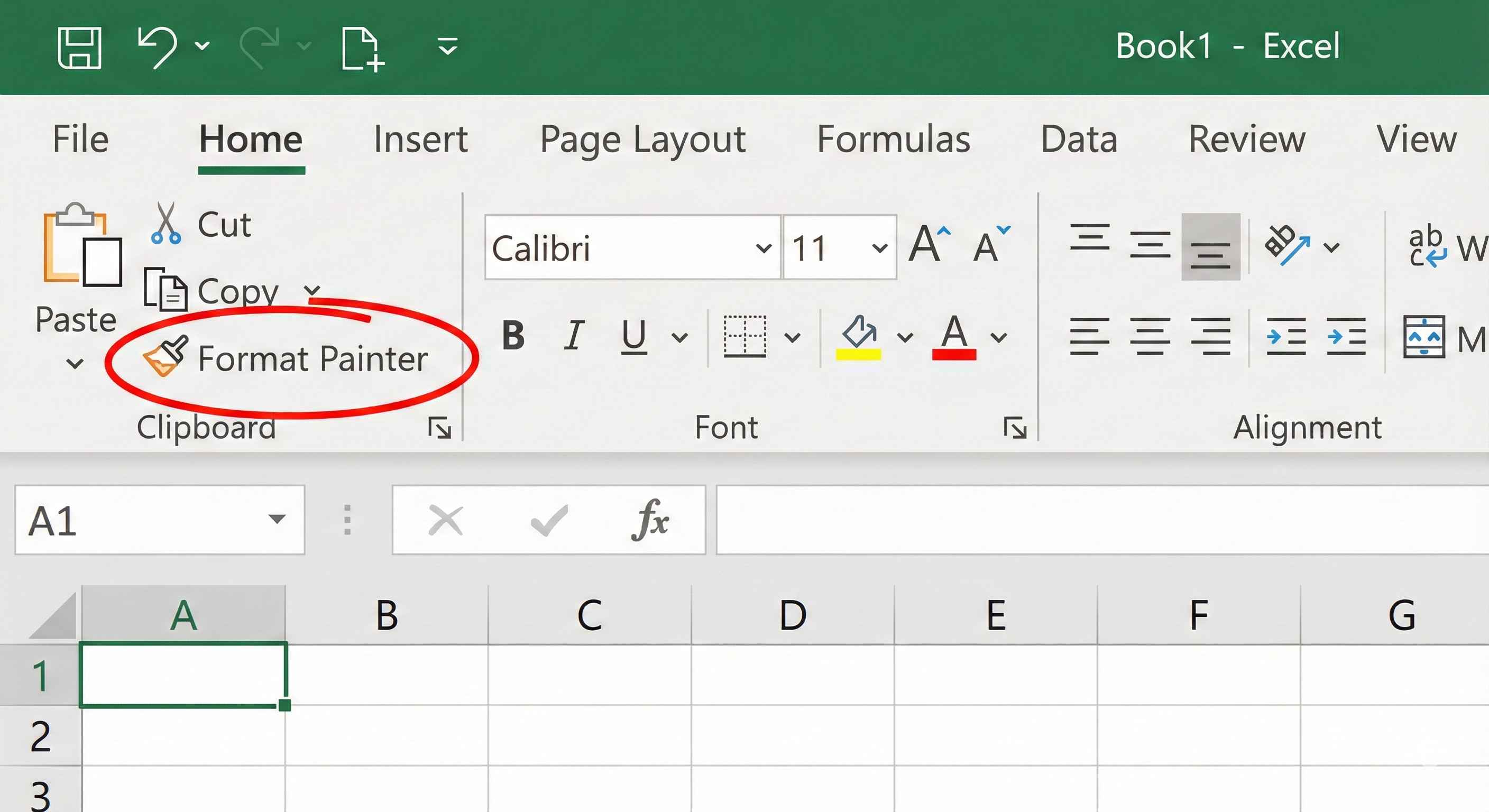
Where to Find It
Format Painter is in the Home tab, in the Clipboard group.
It looks like a small paintbrush icon.
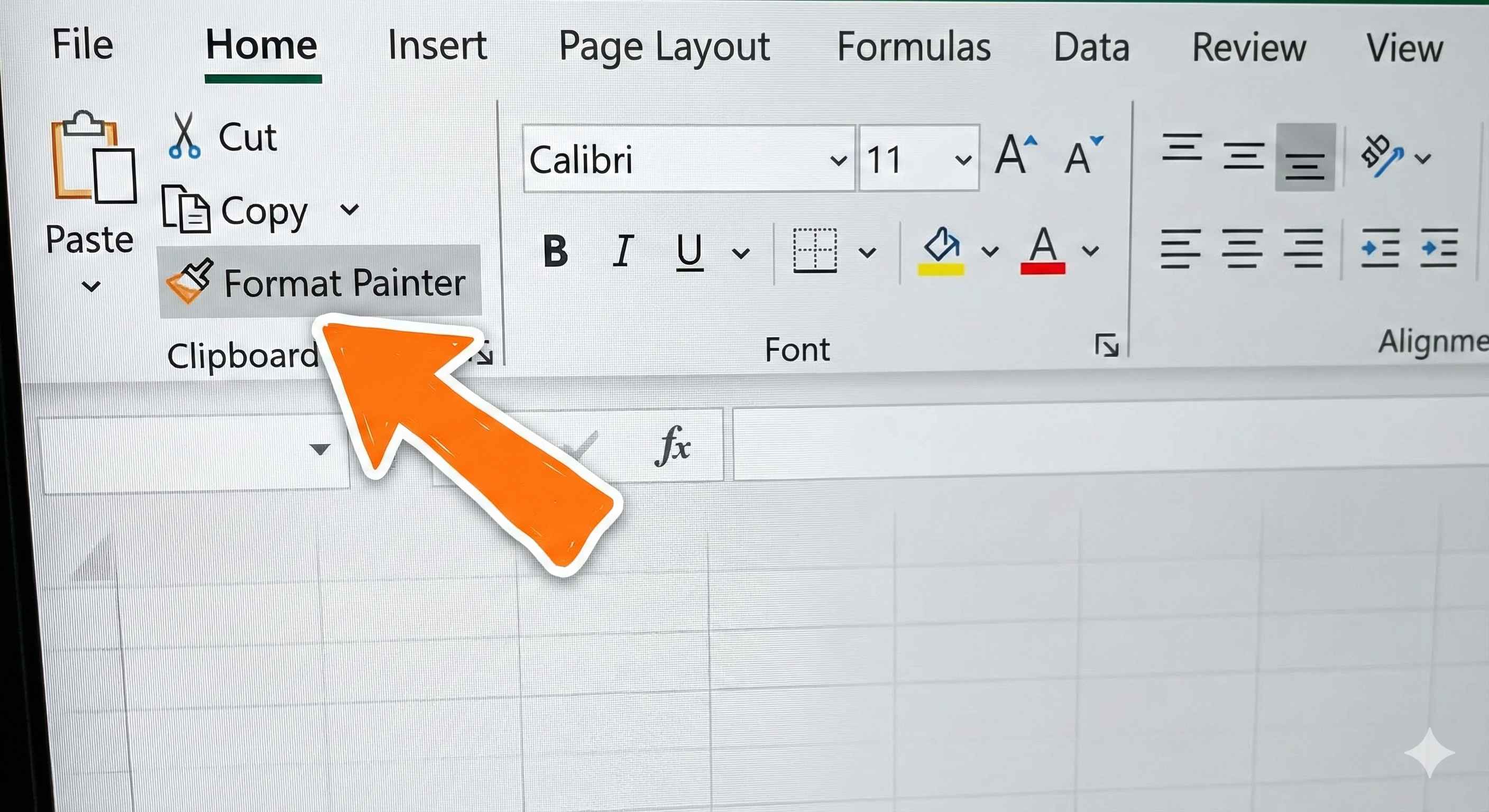
How to Use Format Painter
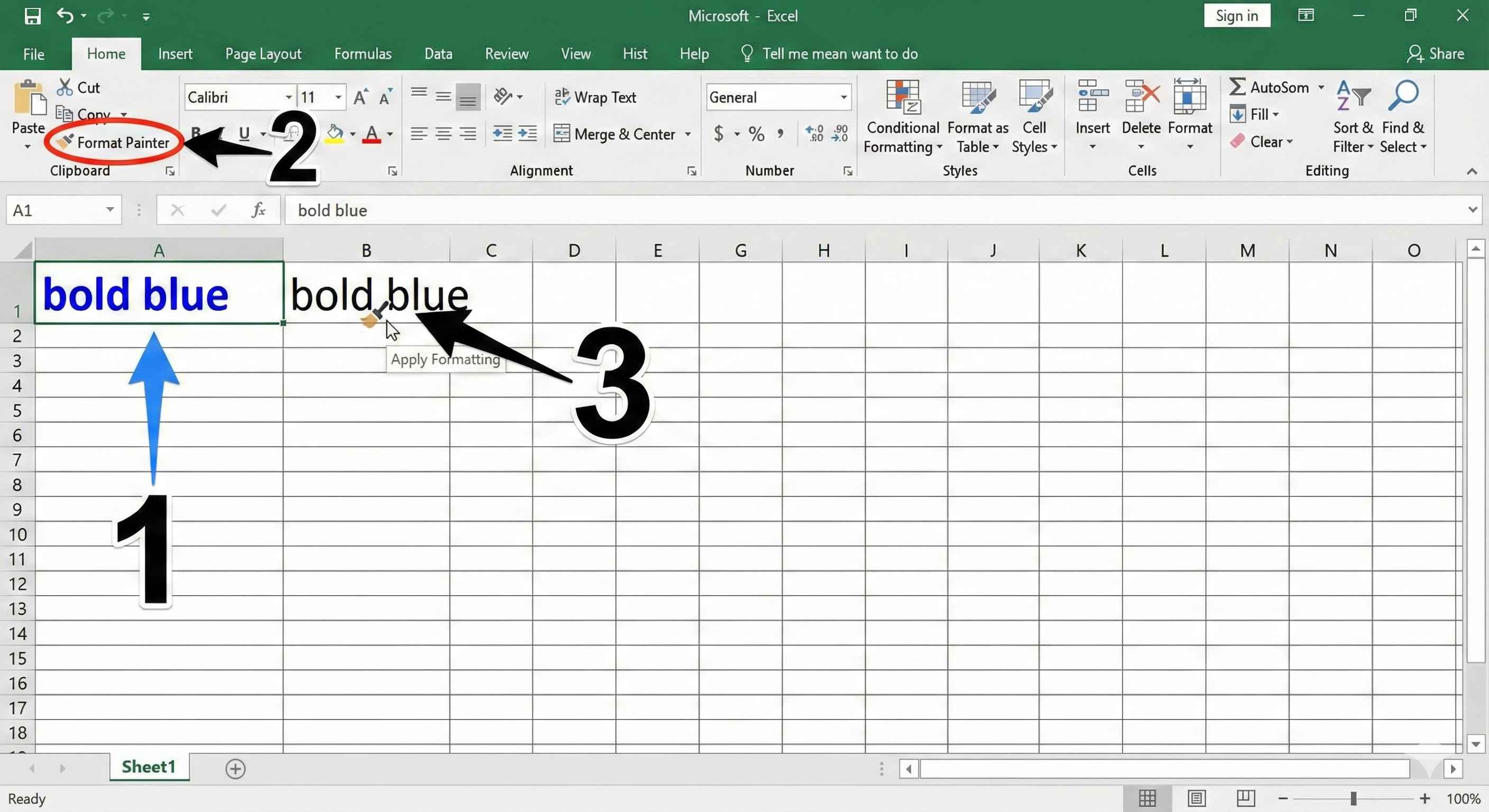
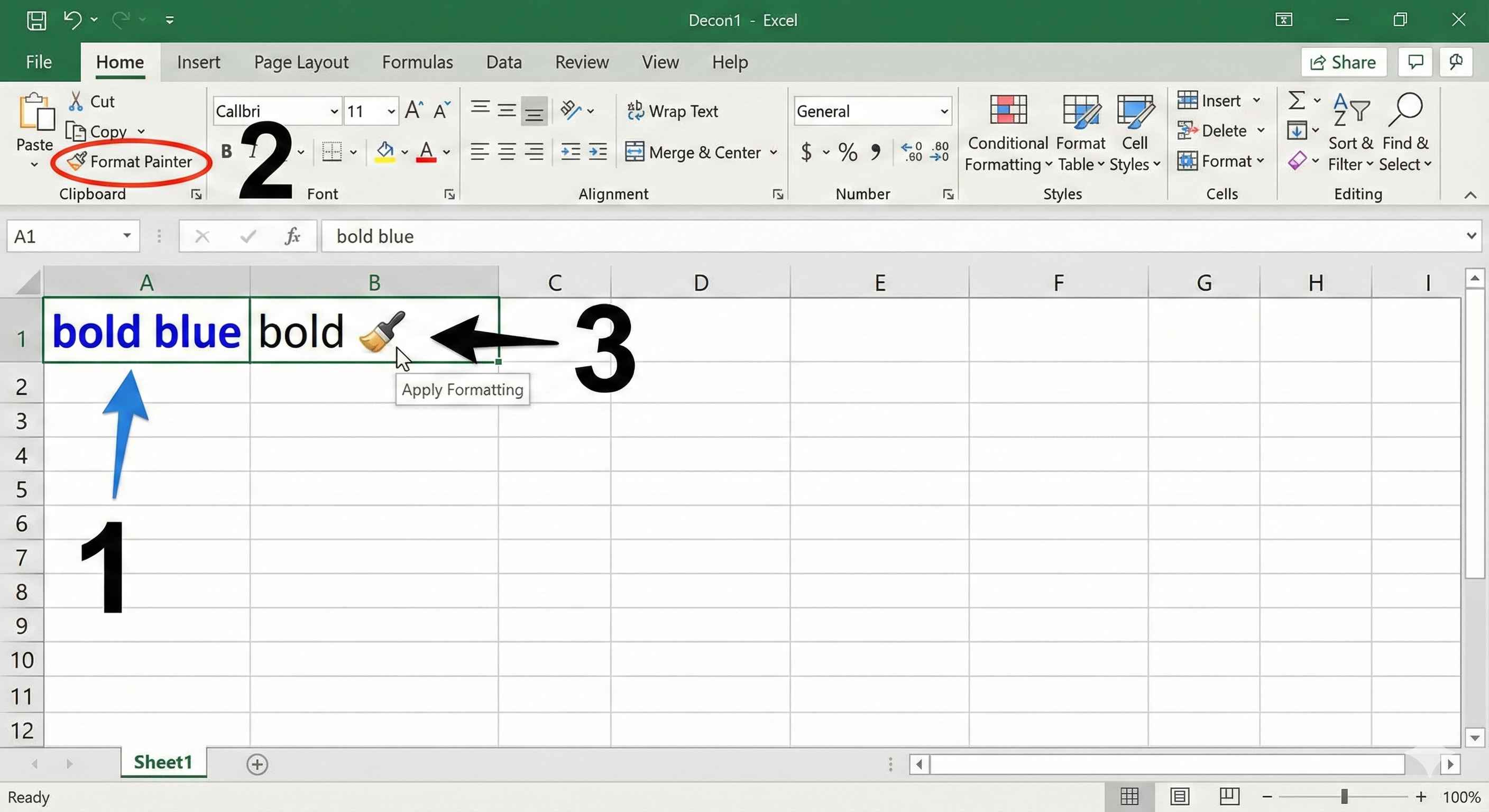
Step 1: Click the cell that has the formatting you want to copy.
Step 2: Click the Format Painter button (paintbrush icon).
Step 3: Click the cell where you want to apply the formatting.
Done! The formatting is copied.
Example: Copy Header Formatting
You have a header cell with:
- Bold text
- Blue background
- White font color
| A | B | C | |
|---|---|---|---|
| 1 | Sales Report (formatted) | January | February |
| 2 | 100 | 200 | 300 |
You want B1 and C1 to look the same as A1.
Steps:
- Click A1 (the formatted cell)
- Click Format Painter
- Drag across B1:C1
Now all headers look the same!

Format Multiple Cells at Once
Method 1: Drag to select
After clicking Format Painter, drag across multiple cells instead of clicking just one.
Method 2: Double-click Format Painter
Double-click the Format Painter button. It stays "on" until you press Escape.
Now you can click multiple cells one by one. Each click applies the formatting.
Press Escape when done.
Step 1: Double-click the Format Painter button
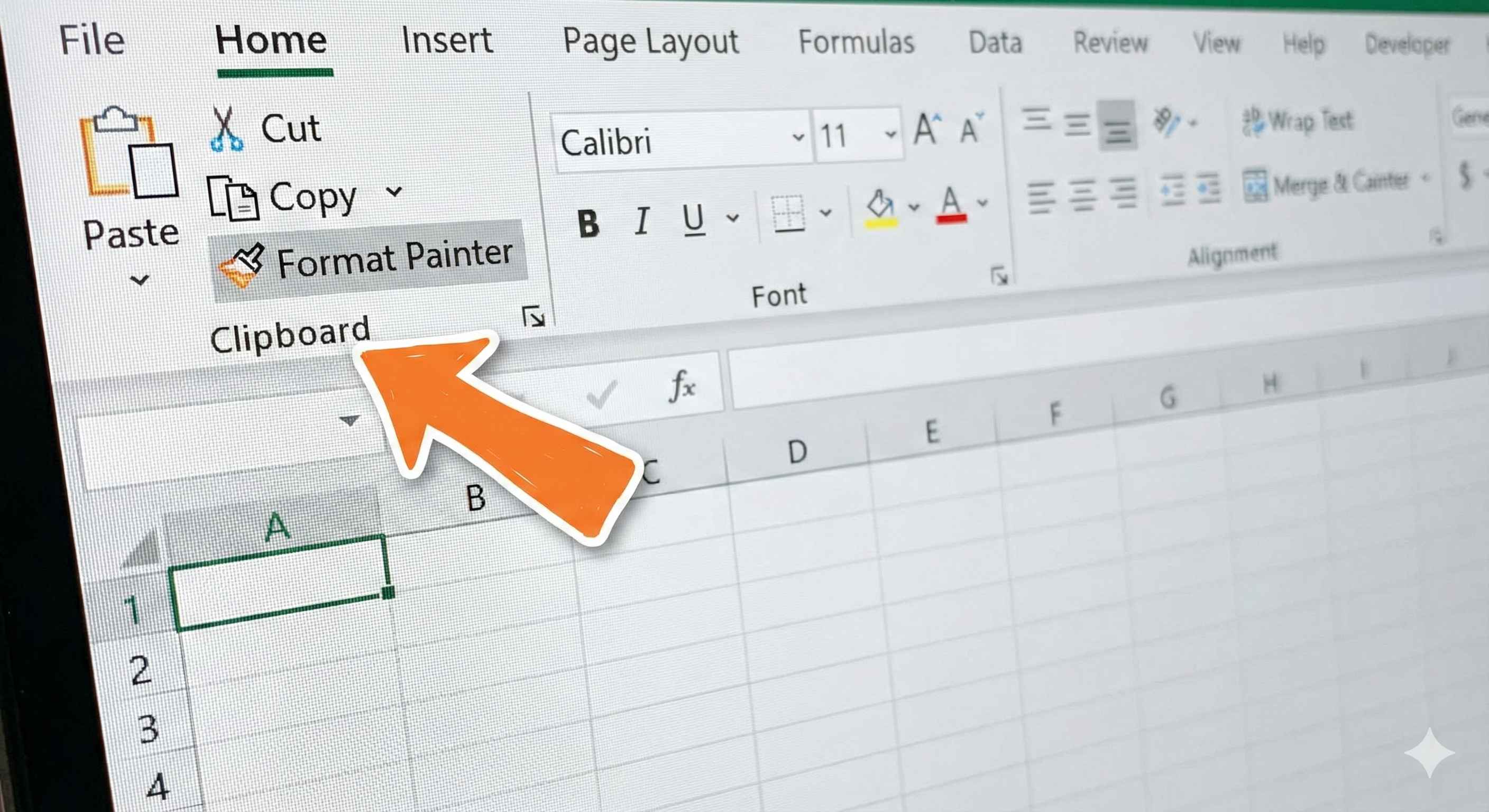
Step 2: Click on multiple cells to apply formatting
Step 3: Press Escape when finished

Keyboard Shortcut
Want to be faster? Use keyboard shortcuts:
| Action | Shortcut |
|---|---|
| Copy formatting | Ctrl + Shift + C |
| Paste formatting | Ctrl + Shift + V |
This is even faster than clicking the button.
Common Uses
| Situation | How Format Painter Helps |
|---|---|
| Formatting tables | Copy header style to all headers |
| Highlighting important data | Copy highlight color to similar cells |
| Consistent reports | Make all sections look the same |
| Fixing inconsistent formatting | Apply standard format across sheet |
Tips and Tricks
Tip 1: Format entire rows or columns
Select an entire formatted row, use Format Painter, then click another row number. The whole row gets formatted.
Tip 2: Copy to another sheet
Format Painter works across sheets. Copy format from Sheet1, go to Sheet2, and apply.
Tip 3: Undo if you make mistakes
Press Ctrl + Z immediately to undo if you applied formatting to the wrong cells.
Summary
- Format Painter copies cell formatting (not data)
- Find it in Home tab → Clipboard group
- Single click = apply once
- Double click = apply multiple times (press Escape to stop)
- Shortcut: Ctrl + Shift + C (copy) and Ctrl + Shift + V (paste)
Format Painter saves hours of repetitive formatting work. Use it every time you need consistent styling!