Module 4
3 min
CONCAT Function
Join text from multiple cells into one
CONCAT Function
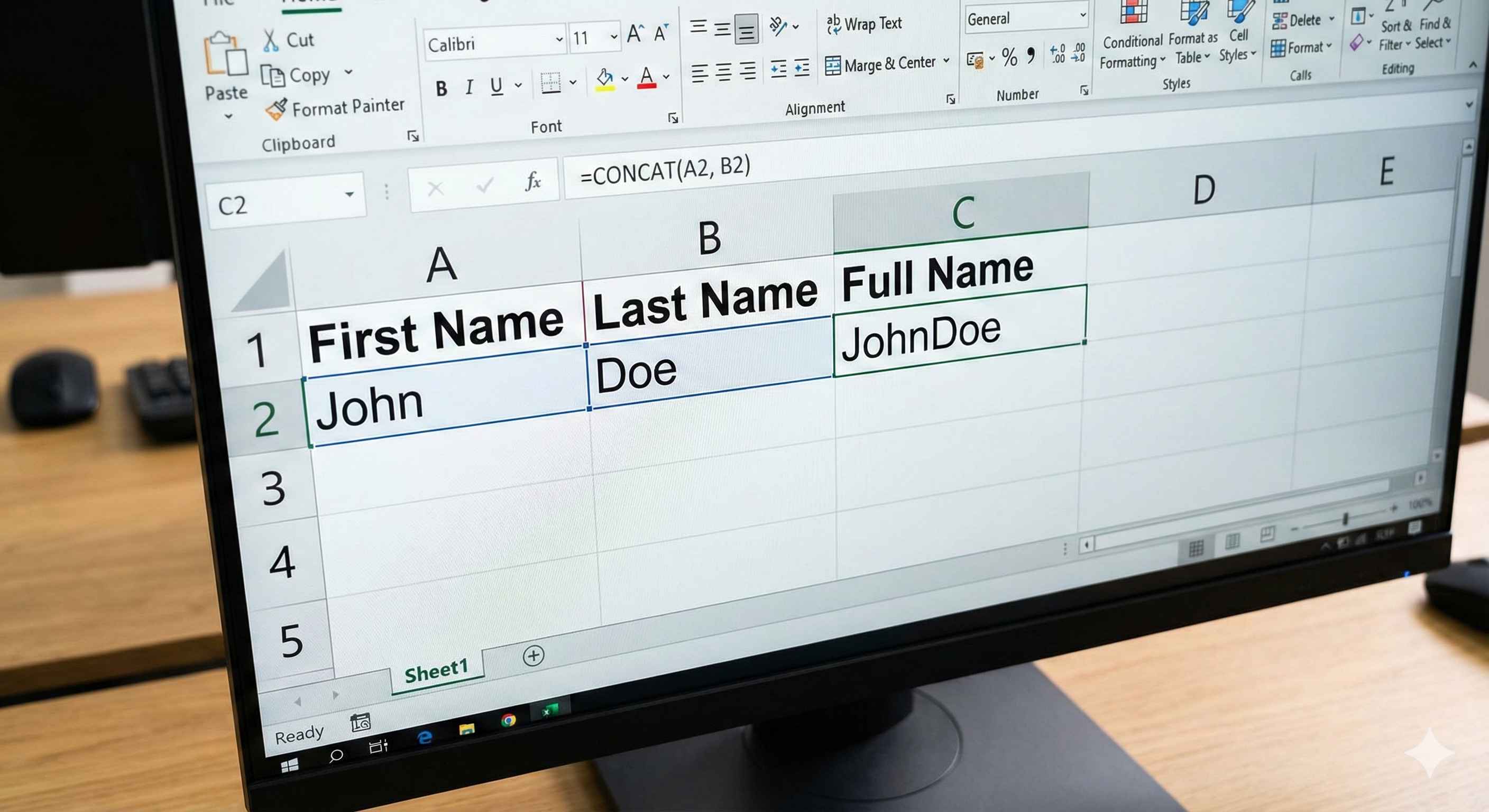
CONCAT joins text from different cells into one cell.
What is CONCAT?
CONCAT = Concatenate = Join together
It takes text from many cells and puts them in one cell.
The Formula
=CONCAT(text1, text2, text3, ...)
Simple Example
| A | B | C |
|---|---|---|
| John | Smith | =CONCAT(A1, B1) |
| Result: | JohnSmith |
2 rows
Add Space Between
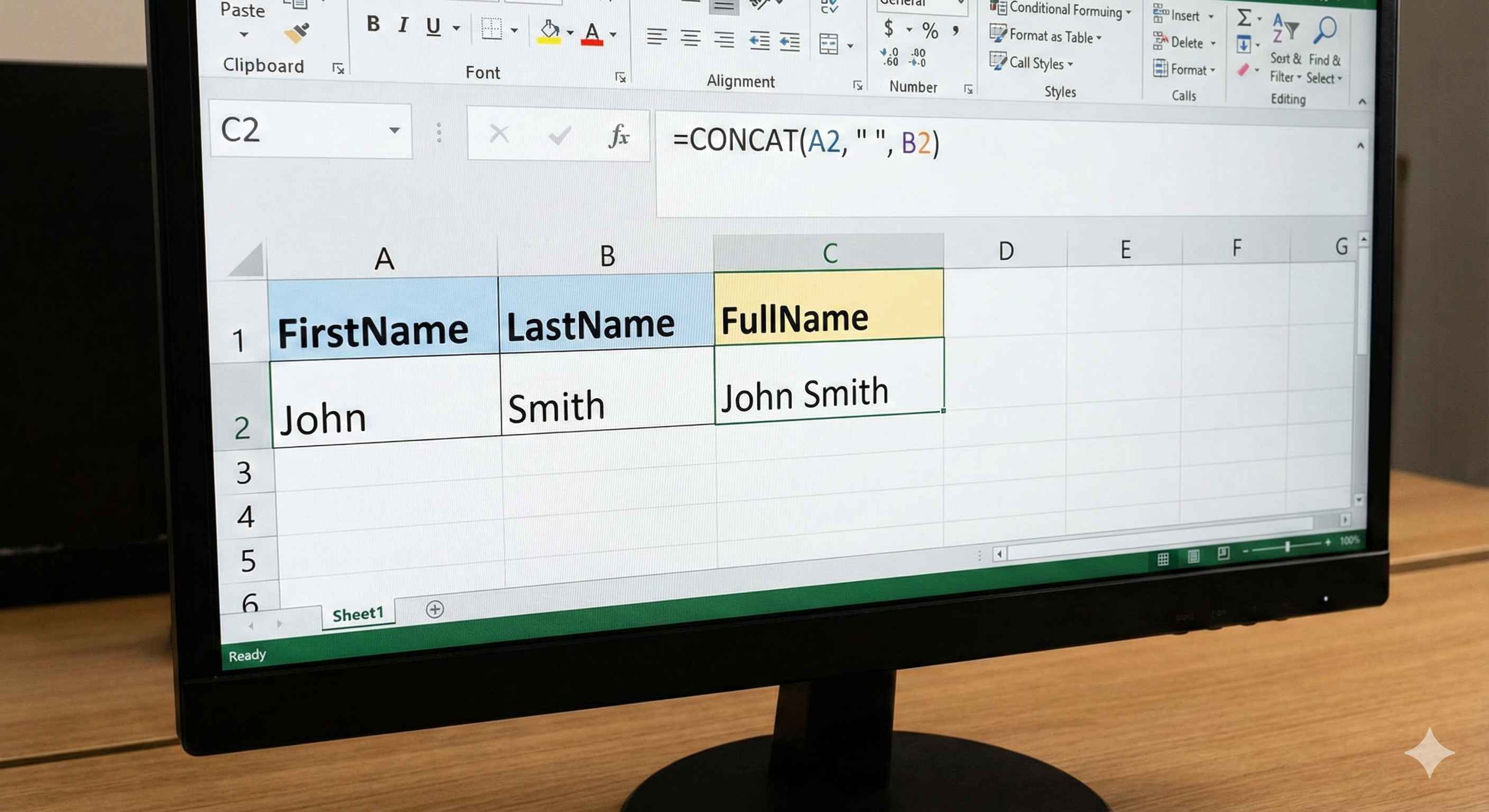
=CONCAT(A1, " ", B1)
Result: John Smith
The " " adds a space between.
Join Many Cells
=CONCAT(A1, " ", B1, " - ", C1)
| A1 | B1 | C1 | Result |
|---|---|---|---|
| John | Smith | Sales | John Smith - Sales |
1 row
CONCAT vs &
You can also use & to join text:
=A1 & " " & B1
Same result as CONCAT!
<DataTable headers={["Method", "Formula", "Result"]} rows={[ ["CONCAT", "=CONCAT(A1, " ", B1)", "John Smith"], ["&", "=A1 & " " & B1", "John Smith"] ]} />
Common Uses
| Use | Formula |
|---|---|
| Full name | =CONCAT(FirstName, ' ', LastName) |
| Address | =CONCAT(City, ', ', State) |
| =CONCAT(Name, '@company.com') | |
| File path | =CONCAT(Folder, '/', FileName) |
4 rows
Summary
- CONCAT joins text together
- Add " " for space between words
- Use & as shortcut: =A1 & B1
- Great for names, addresses, emails